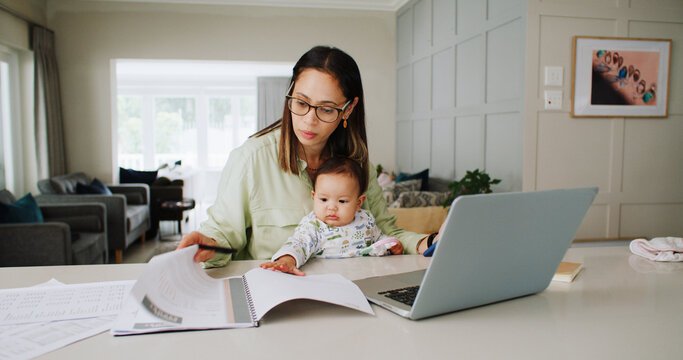
My mom is 63, retired, and her phone is basically a WeChat machine. So when her old laptop finally died last month and I volunteered to set up the new one, I knew the most important decision wasn’t the antivirus or the browser. It was the input method. She types Chinese for everything — messaging her sisters, the family group chat, her dance class schedule spreadsheet. Get that wrong, and I’d be fielding tech-support calls for years.
Here’s the thing about my mom’s generation: she never properly learned pinyin. School back then didn’t emphasize it, so typing by spelling is slow and frustrating for her. On her phone she just writes characters with her finger. I needed that same experience on the laptop.
Choosing the app was the easy part. 搜狗输入法 has a handwriting mode built in, and that single feature settled the debate before it started.
The part I wasn’t relaxed about was the 搜狗输入法下载 itself, so I handled it before she ever touched the machine. Good call, as it turned out — the search results were a minefield. Lookalike sites, “Download Now” buttons that were actually ads, one page that tried to push a completely unrelated PDF converter at me. Left alone, my mom would have clicked the biggest green button, like everyone does. I went to the official source instead, and the real installer was up and running in about four minutes.
Then came the moment of truth. I switched the input panel to the handwriting pad and her face lit up. She grabbed the mouse — badly, the way mothers hold mice — and drew a wobbly 明. Recognized instantly. First try. She laughed out loud, then wrote it again just to watch it work again.
But here’s what genuinely surprised me over the next two weeks: she started using pinyin on her own. Not because I pushed her — because the fuzzy pinyin and prediction are forgiving enough for someone whose spelling is shaky. Type “ming” and the right character is usually sitting at position one. The prediction learns fast, too. Within days it was offering her sisters’ names and her dance studio’s address before she’d finished the second syllable. She’s typing maybe three times faster than on day one, and the number of “it’s broken again” phone calls I’ve received is exactly zero.
If you’re setting this up for a parent, a few things I’d repeat: bump the candidate font size up (ten seconds in settings), keep the handwriting button somewhere visible, turn off the theme popups — cute for teenagers, confusing for a 63-year-old — and sign into the sync account yourself, saving the password somewhere safe. When the next laptop inevitably arrives, her trained dictionary comes along and you skip the whole retraining phase.
Any downsides? Sure. The voice input, which she was excited about, struggles with her accent, so we dropped it. And now and then a cartoon sticker suggestion pops up mid-sentence and she asks why the computer is “being silly.” Small prices.
Last week she sent a full paragraph to the family group chat, typed entirely on her own. My aunts immediately asked who set up her computer. That’s the review that counts. If you’re the designated tech person in your family: do the download yourself, pick the tool that forgives bad pinyin and shaky handwriting, and spend the ten minutes on settings. Your future self — the one not answering tech-support calls — will thank you.